Kling 3.0 Review: AI Video with Smooth Motion and Lifelike Portraits
Kling 3.0 by Kuaishou is the latest version of the well-known video model: improved physics, smooth motion and expressive portraits. Modes, pricing, prompts and tips.
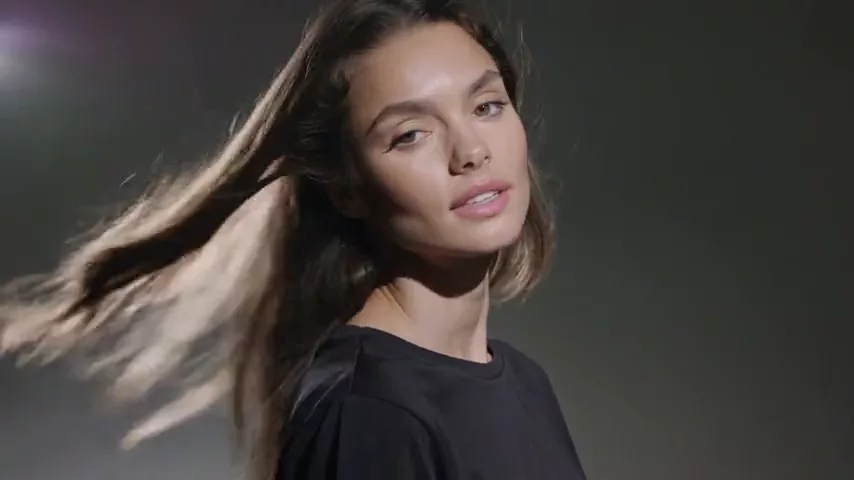
This Kling 3.0 review is for anyone making video for social media, advertising or personal creative projects who wants motion on screen to look natural. Kling 3.0 is the latest version of the video model from Kuaishou. The Kling line is known for realistic movement, and in version 3.0 the focus is on improved physics, smooth motion and portraits: facial expressions, head turns and hair in the wind look convincing.
In WebTerra AI, Kling 3.0 runs online alongside other video models — Veo, Seedance, Hailuo, Wan and earlier Kling versions. You can generate video from text or animate a photo, choose a length from 3 to 15 seconds, pick a horizontal, vertical or square frame, and control the first and last frame.
Below is a detailed breakdown: what the model can do, how to use Kling 3.0 step by step, Kling 3.0 pricing on each plan, prompt examples, tips, a workflow for longer videos, a comparison with other models and its limitations.
What Kling 3.0 can do
Kling 3.0 creates short video clips in two modes:
- Text-to-video. Describe the scene, camera movement and mood, and the model generates a clip from scratch.
- Image-to-video. Upload a picture and the model brings it to life: a character turns their head, water flows, leaves sway.
Additional features:
- First and last frame. Set the image the clip starts with and the one it ends on. The model builds the transition between them — great for transformations, before-and-after shots and smooth story transitions.
- Flexible length. From 3 to 15 seconds in one-second steps, so you can fit a clip precisely to your edit.
- Three aspect ratios. 16:9 for YouTube and websites, 9:16 for Reels, TikTok and stories, 1:1 for social feeds.
The strengths the vendor highlights are physics, smoothness and portraits. In practice, Kling 3.0 is particularly well suited to scenes with people: emotional close-ups, turns, gestures, the movement of hair and fabric.
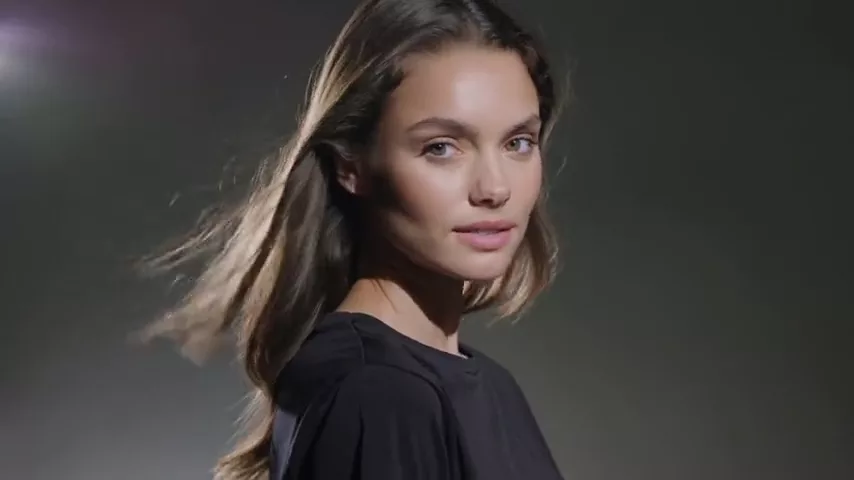
The model’s demo clip in the dashboard is a portrait of a woman turning her head towards the camera, hair blowing in the wind, under studio lighting. The prompt for it is listed in the examples below.
Kling 3.0 specs
| Parameter | Value |
|---|---|
| Developer | Kuaishou |
| Type | Video generation |
| Input modes | Text-to-video; image-to-video |
| Duration | 3 to 15 seconds |
| Aspect ratios | 16:9, 9:16, 1:1 |
| First and last frame | Yes |
| Defaults | 5 seconds, 16:9 |
| Price | 73–81 credits for a 3-second clip (about $0.84–$1.04) |
How to use Kling 3.0 in WebTerra AI
- Sign up for WebTerra AI and top up your balance on one of the plans.
- Open the video generator in your dashboard and choose Kling 3.0.
- Pick a mode: text-to-video or image-to-video. For the latter, upload an image.
- Optionally set the first and last frame.
- Choose the length (3–15 seconds) and the aspect ratio: 16:9, 9:16 or 1:1.
- Write a prompt in English or pick a template: cinematic shot, product video, emotional close-up and more.
- Run the generation and download your clip.
You can compare Kling 3.0 with other video models on the AI video generation page.
Kling 3.0 pricing
The cost depends on the clip length. The table shows the price of the shortest clip (3 seconds):
| Plan | Credits | Cost, USD |
|---|---|---|
| Starter | 81 | about $1.04 |
| Pro | 77 | about $0.93 |
| Ultra | 73 | about $0.84 |
Longer clips cost more credits. The 60 free credits you get on sign-up are not enough for Kling 3.0 — even the shortest clip costs more. You can, however, spend them on a source image for image-to-video or on testing your prompt in a cheaper video model, then run the final version in Kling 3.0. Full terms are on the WebTerra AI pricing page.
A budget tip: validate your idea with 3-second clips and generate longer versions once the prompt is dialed in.
Kling 3.0 prompt examples
Write prompts in English. Ending with “no text, no captions, no watermark” helps keep stray lettering out of the frame.
1. Portrait (the model’s demo prompt)
Cinematic portrait of a woman with long hair turning her head towards the camera, hair flowing in the wind, dramatic studio lighting, ultra-detailed skin, no text, no captions, no watermark
The same prompt as the demo clip — it shows off the model’s strengths: portraits and smooth motion.
2. Product video
Slow 360-degree orbit around a luxury wristwatch on a black marble pedestal, soft reflections, studio lighting, shallow depth of field, premium commercial look, no text, no watermark
An ad clip for a marketplace or social media.
3. Emotional close-up
Close-up of an elderly man looking at an old photograph, his eyes slowly filling with tears, a gentle smile appears, warm window light, quiet and emotional, no text
A scene where facial expression matters — exactly where Kling 3.0 performs best.
4. Food close-up
Macro shot of maple syrup pouring onto a stack of fluffy pancakes with berries, steam rising, warm morning light, slow motion, appetizing, no text
A mouth-watering clip for a menu, Reels or food delivery.
5. Fantasy scene
A knight in silver armor walking through a misty enchanted forest, glowing fireflies around, camera slowly tracking behind him, cinematic fantasy atmosphere, no text
A cinematic scene with camera movement.
6. Animate a photo
The person in the photo slowly smiles and turns slightly towards the camera, natural blinking, subtle breeze in the hair, keep the original lighting and background
An image-to-video prompt: describe the motion, not what is already in the picture.
Tips for prompting Kling 3.0
Describe motion, not just the scene
Video is change over time. Beyond what is in the frame, say what happens: “turns her head”, “slowly smiles”, “walks towards the camera”, “leaves falling”.
Direct the camera
Camera movement makes a clip feel cinematic: “slow dolly in”, “orbit around”, “tracking shot”, “camera slowly tilting up”, “static shot”. One type of movement per clip is usually enough.
Play to its strength — people
Emotions, glances and gestures are what Kling 3.0 renders convincingly. Describe micro-movements: blinking, breathing, a faint smile.
Use first and last frame for transformations
Provide two images — say, an empty room and a furnished interior — and the model builds the transition. It works best when both frames share a similar angle and lighting.
Choose the aspect ratio for the platform up front
Reels and TikTok need 9:16, YouTube and websites 16:9, feeds 1:1. Cropping a horizontal video to vertical after generation means losing part of the frame.
Test short, finalize long
Check a prompt on 3-second clips, and once it works, generate the length you need.
Building a longer video from several generations
A single Kling 3.0 clip runs up to 15 seconds, but ads and music videos are often longer. They are assembled from several generations, and first and last frame control helps a lot here.
- Plan the scenes. Break the idea into short shots of 3–8 seconds: a wide shot, a close-up of the hero, a detail, a closing frame.
- Prepare key frames. Generate start and end images for each shot with an image model so the style and character stay consistent.
- Generate the shots. Set the first and last frame for each one. If the last frame of one shot matches the first frame of the next, the cut becomes almost invisible.
- Keep one style block. Copy the lighting, color and camera description from prompt to prompt without changes.
- Edit and add sound. Assemble the shots in your editor, then add effects and music with the sound-for-video models.
This gives you more control than one long generation: a weak shot can be regenerated on its own without spending credits on the whole video.
Use cases
- Social media and creators. Eye-catching Reels, stories and TikToks in vertical format.
- Advertising and e-commerce. Product videos, animated banners, clips for product listings.
- Music video makers and directors. Cinematic inserts and scene previsualization.
- Restaurants and food delivery. Appetizing dish videos for menus and social media.
- Real estate and interiors. Interior fly-throughs and apartment video tours.
- Personal projects. Animated family photos, greeting videos, creative experiments.
Kling 3.0 vs other video models
| Model | Focus | Choose it over Kling 3.0 when |
|---|---|---|
| Kling 2.6 Pro | Sound out of the box | You want video with generated audio, no separate sound pass |
| Veo 3.1 | 4K, with sound | You need maximum resolution and synchronized audio |
| Seedance 2.0 | Audio + multi-scene | You need a clip with several scenes and sound |
| Kling 2.5 Turbo Pro | Up to 10 s, realistic | You prefer the proven previous version of the line |
The honest verdict: choose Kling 3.0 when motion quality and lifelike portraits matter most and you will add sound separately. If audio must come with the picture, look at Kling 2.6 Pro, Veo 3.1 or Seedance 2.0. For budget experiments the service has cheaper models such as Wan 2.7.
Limitations
- Price. Even the shortest clip costs more than the 60 free credits, so you will need a plan to test it.
- Short clips. The maximum is 15 seconds; longer videos are assembled from several generations.
- Sound is separate. Audio generation is not listed for this model. Use the sound-for-video models to add it.
- Three aspect ratios. 16:9, 9:16 and 1:1 are available; other proportions only by cropping afterwards.
FAQ
How much does a Kling 3.0 video cost?
The shortest clip (3 seconds) is 81 credits on Starter, 77 on Pro and 73 on Ultra — about $0.84–$1.04. Longer clips cost more.
What is the maximum video length?
15 seconds. The minimum is 3 seconds, adjustable in one-second steps.
Can I animate a photo?
Yes, in image-to-video mode: upload a picture and describe how it should move.
What does first and last frame control do?
You set a starting and an ending image, and the model builds a smooth transition between them — handy for transformations and story transitions.
Does Kling 3.0 generate sound?
Audio generation is not listed for this model. You can add effects and music with the sound-for-video models.
Are the free credits enough for Kling 3.0?
No: 60 credits is less than the price of the shortest clip. Use them for a source image or for tests in other models.
If natural motion and believable emotion on screen matter to you, Kling 3.0 is one of the most interesting models in the catalog. Open Kling 3.0 in your WebTerra AI dashboard and make your first clip — start with a portrait, where the model shines.
Try AI models yourself
Models for video, images and audio in one place — 60 credits free when you sign up
Start for free