Veo 3.1 Review: Google’s 4K AI Video With Built-In Sound
Veo 3.1 is Google’s flagship video model: up to 4K, synchronised sound out of the box, and video from text, a photo or up to three references. We cover features, pricing and prompts.
Veo 3.1 is Google’s flagship video generation model. It produces 4-, 6- or 8-second clips at up to 4K resolution and generates synchronised audio in the same pass — dialogue, effects and ambience. In this Veo 3.1 review we cover its input modes, resolutions and formats, Veo 3.1 pricing on each plan, how to use Veo 3.1 online in WebTerra AI, and how to write prompts that describe sound as carefully as picture.
What sets Veo 3.1 apart from most video models is sound out of the box. You do not need a separate audio step: if your prompt has a character say a line while rain drums on the window, you hear it in the finished clip. Combined with realistic motion and detail up to 4K, that makes it a tool for the most demanding work — ads, music videos and cinematic scenes.
It is also a premium model with a premium price. So alongside the features, this review looks at how to spend credits wisely: when 720p is enough, when 4K is worth it, and how to test a prompt without burning budget.
What Veo 3.1 can do
- Synchronised audio built in. Dialogue, effects and ambience are generated with the video and line up with on-screen events.
- Up to 4K. Choose 720p, 1080p or 4K.
- 4, 6 or 8 seconds. From a short accent shot to a complete scene.
- Text-to-video. Scene, camera move and sound, all from a prompt.
- Image-to-video. Bring an uploaded picture to life.
- Reference-to-video. Up to three photo references to keep a character, product or style consistent.
- First and last frame. Set the start and end, and the model builds the transition.
- 16:9 and 9:16. Widescreen for YouTube and websites, vertical for Reels and Stories.
Google positions Veo 3.1 as its flagship, with realistic physics and motion. That is why its presets lean into scenes where motion matters — nature and time-lapse, sports slow motion, fantasy, food close-ups — plus presets built around sound: Character line with sound and Scene with ambient sound.
Veo 3.1 specs
| Spec | Value |
|---|---|
| Developer | |
| Type | Video generation with audio |
| Input modes | Text-to-video, image-to-video, reference-to-video (up to 3 photos), first and last frame |
| Duration | 4, 6 or 8 seconds |
| Resolution | 720p, 1080p, 4K |
| Base rate, credits per second | 720p and 1080p — 68, 4K — 102 |
| Aspect ratios | 16:9, 9:16 |
| Defaults | 6 seconds, 720p, 16:9 |
| Price of a 4-second clip | 232–259 credits, about $2.68–$3.31 |
How to use Veo 3.1 in WebTerra AI
- Sign up for WebTerra AI and choose a plan — a single Veo 3.1 clip costs more than the 60 welcome credits.
- Open video generation in the dashboard and select Veo 3.1.
- Pick a mode: text, image-to-video, references (up to three photos) or first and last frame.
- Set duration (4, 6 or 8 seconds), resolution (720p, 1080p or 4K) and aspect ratio (16:9 or 9:16).
- Write your prompt: scene, action, camera movement and, separately, the sound — lines, effects, ambience.
- Check the cost shown before you run, then generate.
Other video models are on the AI video page.
Veo 3.1 pricing
The cost of one 4-second clip at 720p (1080p is charged at the same rate):
| Plan | Credits | Price in USD |
|---|---|---|
| Starter | 259 | about $3.31 |
| Pro | 245 | about $2.95 |
| Ultra | 232 | about $2.68 |
Price scales with duration and resolution. The base rate is 68 credits per second for 720p and 1080p and 102 credits per second for 4K, with a discount on higher plans — so 4K costs 1.5 times as much per second as 1080p. The 60 welcome credits are not enough for a Veo 3.1 clip, but you can spend them on other models, for example to rough out an idea in a cheaper video model first. Plan details are on the pricing page.
Prompt examples for Veo 3.1
With Veo 3.1, describe the soundtrack as well as the picture.
1. Documentary shot (the model’s demo prompt)
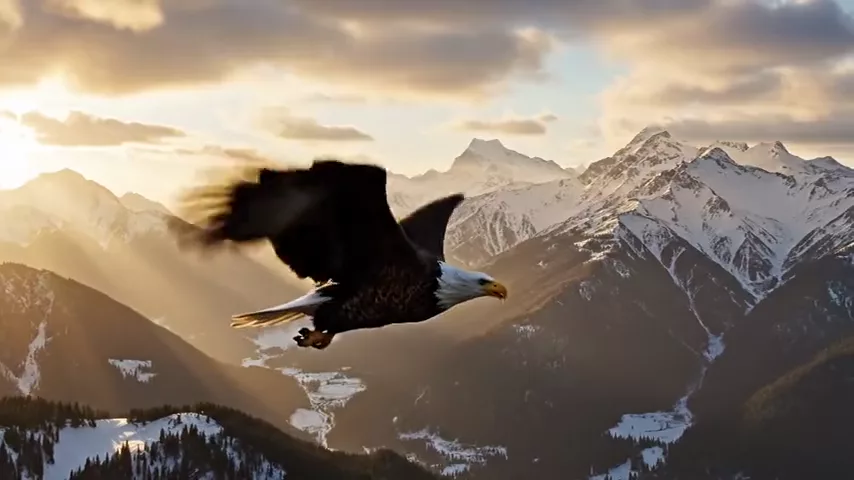
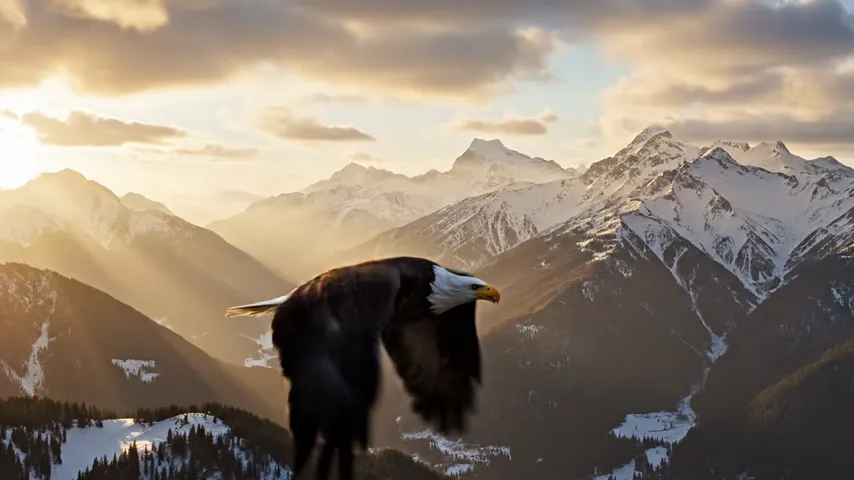
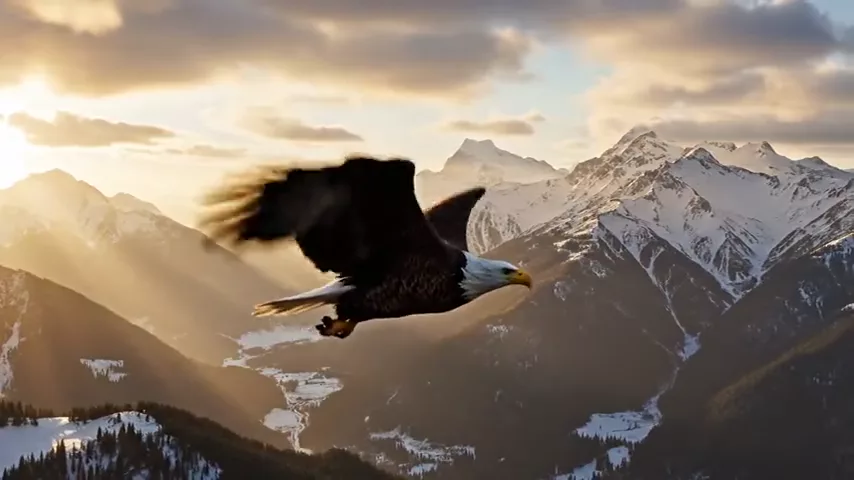
Nature documentary shot: a bald eagle soaring over snow-capped mountains at golden hour, camera slowly following, ultra-sharp 4K detail, volumetric light, no text, no captions, no watermark
The model’s demo clip was made from this prompt. Plenty of fine detail and natural light make it a good 4K candidate.
2. Character line with sound
Medium close-up of a barista in a cozy café looking at the camera and saying: "Your usual? Coming right up." Espresso machine hissing, soft background chatter, warm morning light
Dialogue in quotes, ambient sounds listed separately, so the model knows what is said and what surrounds it.
3. Scene with ambient sound
Static wide shot of a small wooden cabin in a pine forest during heavy rain at night, warm light in the window, sound of rain on the roof, distant thunder, crackling fireplace inside
Sound carries half the mood here — ideal for intros and atmospheric Reels.
4. Product video
Slow dolly in on a pair of white sneakers on a concrete podium, soft studio light, subtle dust particles, clean commercial look, deep bass whoosh as the camera moves, no text
An ad with sound design baked in. Render the final at 1080p or 4K.
5. First-person vlog
POV handheld shot walking through a busy street food market at night, sizzling grills, vendors calling out, people laughing, neon signs, phone camera look
A phone-style shot where the market noise sells the scene.
6. Sports slow motion
Slow motion shot of a surfer cutting through a large wave, water spray glittering in the sun, roar of the ocean, cinematic
A dynamic moment that shows off water physics.
Tips for Veo 3.1 prompts
Give sound its own block
After the visual description, add the audio: “sound of…”, “ambient…”, “saying: …”. The more specific the sources, the tighter the sync.
Keep dialogue short and quoted
In 4 to 8 seconds a character can deliver one short line. A long monologue will not fit and will sound rushed.
Match resolution to the job
For tests and social media, 720p or 1080p is usually enough — and they cost the same per second. Save 4K for final ads, large screens, or footage you plan to crop in the edit.
Test at 4 seconds
The shortest clip is the cheapest. Nail the visuals and sound at 4 seconds, then render the final 8-second version at the resolution you need.
Use references for consistency
Reference mode (up to three photos) keeps a character’s look, a product or a style consistent across clips — essential for series and campaigns.
Add constraints
As in the demo prompt: “no text, no captions, no watermark”. For audio you can add “no music” if you plan to lay music in post.
A prompt template for video with sound
- Shot and camera. “Medium close-up, slow dolly in.”
- Subject and action. Who is in frame and what they do — one action per clip.
- Place and light. Location, time of day, lighting quality.
- Dialogue. If someone speaks, one short line in quotes.
- Ambience. Two or three sources: rain, footsteps, café chatter, wind.
- Constraints. “No text, no captions, no watermark”, and “no music” if needed.
Working in this order stops you forgetting the audio half, which matters as much as the visuals with Veo 3.1. When something is off, change one block at a time.
How to save credits with Veo 3.1
- Draft elsewhere. Test composition and camera movement in a cheaper model, then run the refined prompt in Veo 3.1.
- Check sound at 720p. Dialogue and effects sound the same at any resolution, and 720p costs no more than 1080p.
- 4K for finals only. It is 1.5 times the per-second rate.
- Higher plans. On Pro and Ultra the same clip costs fewer credits.
A sensible routine is two or three 4-second tests at 720p to lock in the action and the sound, followed by one final render at the length and resolution you actually need. That keeps experimentation on the cheapest settings and spends the 4K rate only on footage that will be published.
Use cases
- Agencies and brands. Final 4K ads with sound design.
- Musicians and video directors. Cinematic shots for music videos.
- YouTube and social creators. Scenes with dialogue and ambience, no voiceover step.
- E-commerce. Premium product videos.
- Writers and directors. Previsualisation with sound for pitches.
- Education and documentary. Illustrative nature, history and science footage.
Veo 3.1 vs other video models
| Model | Highlight | Choose it when |
|---|---|---|
| Veo 3.1 | 4K, with sound | Top-quality finals with synchronised audio |
| Veo 3.1 Lite | Budget Veo, 1080p | Veo-style sound and look when 4K is not needed |
| Kling 2.5 Turbo Pro | Up to 10 s, realistic | Longer clips and 1:1 format for less |
| Kling 2.6 Pro | Sound out of the box | An alternative with built-in sound |
| Seedance 2.0 | Audio + multi-scene | Several scenes in one clip |
If you do not need 4K, compare with Veo 3.1 Lite. For realistic clips up to 10 seconds and square format at a lower price, see the Kling 2.5 Turbo Pro review. An alternative with sound is Kling 2.6 Pro, and for multi-scene clips there is Seedance 2.0. Choose Veo 3.1 when you need maximum resolution, synchronised sound and final quality you can hand to a client.
Limitations
- High price. Even the shortest clip costs over 230 credits; 4K costs more.
- Up to 8 seconds. Build longer stories from several clips.
- Two aspect ratios. Only 16:9 and 9:16 — no square 1:1.
- Short dialogue. One line fits in 4–8 seconds.
- Text in frame. Add titles and logos in post.
- Welcome credits fall short. You will need to top up for your first clip.
FAQ
How much does a Veo 3.1 video cost?
A 4-second clip at 720p or 1080p costs 259 credits on Starter (about $3.31), 245 on Pro (about $2.95) and 232 on Ultra (about $2.68). 4K and longer clips cost more.
Does Veo 3.1 generate sound?
Yes — synchronised audio is generated together with the video: dialogue, effects and ambience.
What is the maximum resolution?
4K, with 720p and 1080p also available.
How many reference photos can I add?
Up to three in reference-to-video mode.
How is Veo 3.1 different from Veo 3.1 Lite?
Veo 3.1 goes up to 4K; Lite is the budget version, up to 1080p. If 4K is not required, compare both on price and results.
Can I make a video longer than 8 seconds?
Not in a single generation. Plan the story as a sequence of short scenes, keep the same style and lighting description in each prompt, and use first and last frame mode or reference photos so that characters and products stay consistent from clip to clip. Then assemble the scenes in your editor.
How do I use Veo 3.1 online?
Sign up for WebTerra AI, top up your balance, open video generation in the dashboard and choose Veo 3.1. Everything runs in the browser.
Veo 3.1 is the pick when final quality matters: 4K, realistic motion and sound that plays with the picture. Open video generation on WebTerra AI and create a clip that needs no separate voiceover.
Try AI models yourself
Models for video, images and audio in one place — 60 credits free when you sign up
Start for free