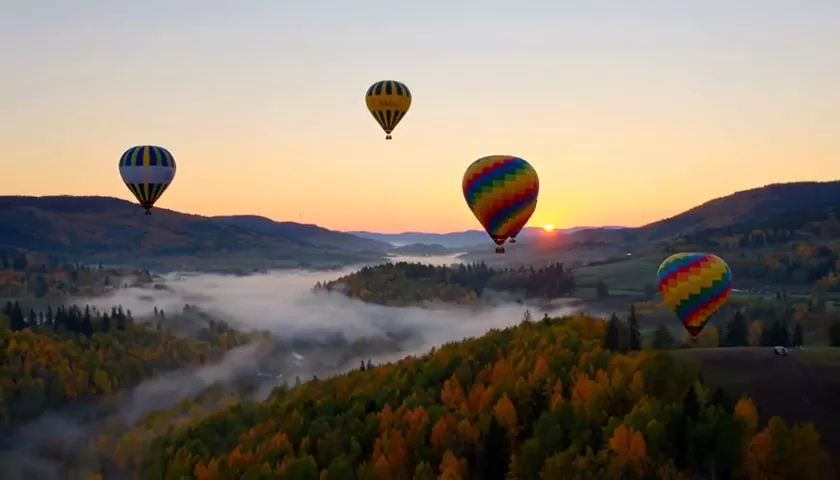
Kling 2.5 Turbo Pro Review: Realistic AI Video Up to 10 Seconds
Kling 2.5 Turbo Pro from Kuaishou creates realistic, cinematic 5- or 10-second clips from text or an image. We cover its modes, formats, pricing per clip and prompts that work.
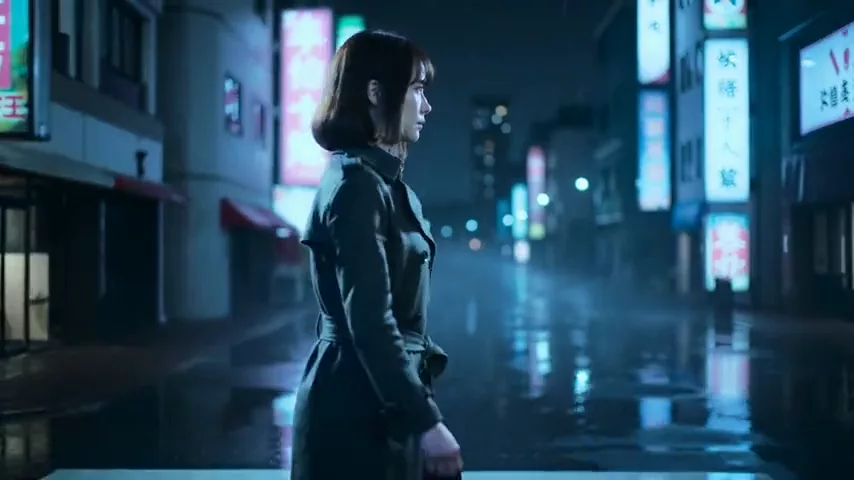
Kling 2.5 Turbo Pro is a video model from Kuaishou built for realistic, cinematic clips. It generates 5- or 10-second videos from a text prompt or an uploaded image, and it can build a transition between a first and a last frame you provide. In this Kling 2.5 Turbo Pro review we walk through its modes and formats, what a clip costs, how to use Kling 2.5 Turbo Pro online in WebTerra AI, and the prompts that give the best results.
The Kling family is known for natural motion and a filmic look. Version 2.5 Turbo Pro is the balanced option: realistic people, atmospheric scenes, product ads and complex camera moves at a moderate price. It carries a “hot” badge in the WebTerra AI dashboard, which reflects how often it is chosen.
It suits social media managers, marketers, Reels creators and anyone who needs short clips with strong visuals and no film crew.
What Kling 2.5 Turbo Pro can do
- Text-to-video. Describe the scene, the camera move and the mood, and the model renders the clip.
- Image-to-video. Upload a picture and the model brings it to life — moving the subject, the camera and the environment.
- First and last frame. Provide a start and an end image and the model builds a smooth transition between them — great for transformations and scene links.
- 5 or 10 seconds. The short version for tests and punchy Reels, the long one for a fuller scene.
- Three aspect ratios. 16:9 for YouTube and websites, 9:16 for Reels, Stories and TikTok, 1:1 for feeds.
- Detailed prompts. Up to 2,500 characters — enough for scene, lighting, camera and the character’s emotion.
The model’s strengths are realistic people and cinematic presentation: depth of field, lighting and a film-like atmosphere. That is reflected in its presets — cinematic shot, emotional close-up, complex camera move, sports slow motion.
Kling 2.5 Turbo Pro specs
| Spec | Value |
|---|---|
| Developer | Kuaishou |
| Type | Video generation |
| Input modes | Text-to-video, image-to-video, first and last frame |
| Duration | 5 or 10 seconds |
| Aspect ratios | 16:9, 9:16, 1:1 |
| Max prompt length | 2,500 characters |
| Defaults | 5 seconds, 16:9 |
| Price of a 5-second clip | 51–57 credits, about $0.59–$0.73 |
How to use Kling 2.5 Turbo Pro in WebTerra AI
- Sign up for WebTerra AI and get 60 free credits — enough for one 5-second clip.
- Open video generation in the dashboard and pick Kling 2.5 Turbo Pro.
- Choose a mode: text only, image-to-video, or first and last frame.
- Set the duration (5 or 10 seconds) and the aspect ratio (16:9, 9:16 or 1:1).
- Write a prompt or start from a preset: what happens, how the camera moves, the light and the mood.
- Check the cost and generate. Download the finished clip and use it right away.
All video models are collected on the AI video page.
Kling 2.5 Turbo Pro pricing
The cost of one 5-second 16:9 clip with default settings:
| Plan | Credits | Price in USD |
|---|---|---|
| Starter | 57 | about $0.73 |
| Pro | 54 | about $0.65 |
| Ultra | 51 | about $0.59 |
A 10-second clip costs more; the dashboard shows the exact amount before you run. The 60 welcome credits cover one 5-second generation on any plan, so you can judge the model on your own prompt. Credit packs are on the pricing page.
Prompt examples for Kling 2.5 Turbo Pro
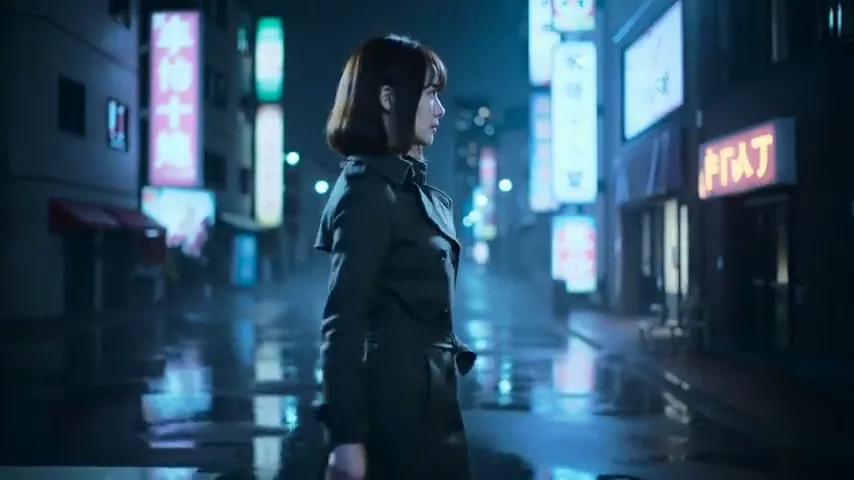
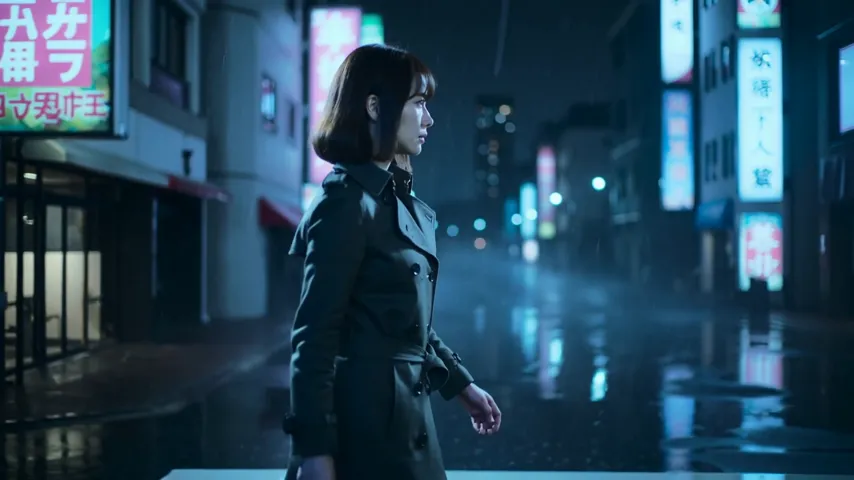
1. Neon street (the model’s demo prompt)
Cinematic tracking shot of a young woman walking through a neon-lit Tokyo street at night, rain on the pavement reflecting pink and blue signs, shallow depth of field, film grain, no text, no captions, no watermark
The model’s demo clip was made from this prompt. It shows a solid structure: shot type, subject, location, light, lens feel, constraints.
2. Product video
Slow orbit camera move around a glass perfume bottle on a black reflective surface, soft rim light, tiny water droplets, premium commercial look, no text
An ad for a marketplace or social feed. The orbit move shows the product from every side.
3. Emotional close-up
Close-up of an elderly man looking at an old photograph, his eyes slowly filling with tears, warm window light, subtle handheld camera, cinematic
Facial expression and gaze are a strong suit — good for social campaigns and short films.
4. Complex camera move
Drone flyover above a misty pine forest at sunrise, camera slowly descending toward a wooden cabin by a lake, golden light, cinematic
Intros, travel videos and real-estate presentations.
5. Food close-up
Macro shot of melted cheese stretching from a slice of pizza being lifted, steam rising, warm restaurant lighting, slow motion
A mouth-watering Reel for a menu, delivery app or restaurant.
6. Animate a photo
The woman in the photo turns her head toward the camera and smiles, wind gently moving her hair, background stays still, natural motion
For image-to-video: describe only the motion, not what is already in the picture.
Tips for Kling 2.5 Turbo Pro prompts
Shot → subject → action → place → light → style
Open with the shot type (close-up, tracking shot, drone flyover), then subject and action, location, lighting and style. This order gives consistent results.
One action per clip
Five to ten seconds comfortably fit one clear action. “She walks to the window and opens it” works. “She wakes up, has breakfast and drives to work” gets squeezed into a chaotic sequence.
Name the camera move
Slow dolly in, orbit, tracking shot, crane up, handheld — the model understands these terms. If the camera should not move, write “static camera”.
Add constraints
“No text, no captions, no watermark”, as in the demo prompt, prevents random lettering in the frame.
Image-to-video: describe motion only
The image already defines the subject, clothes and background. Your prompt should explain what changes: a head turn, wind, a camera move.
Use first and last frame for transitions
For transformations — day to night, sketch to finished product, before and after — supply both frames and briefly describe the transition.
Pick the aspect ratio up front
A 9:16 composition differs from 16:9: keep the subject near the centre and important details away from the edges. Generate in the target format rather than cropping later.
Test at 5 seconds
Short clips are cheaper. Nail the prompt at 5 seconds, then render the final 10-second version.
Building a longer video from several clips
- Storyboard. Break the story into three to five short scenes with one action each: establishing shot, subject approaches, emotional close-up, product detail, final frame.
- Lock the style. Repeat the same lighting, colour and lens description in every prompt, such as “warm golden hour light, 35mm film look”.
- Link the scenes. With first and last frame mode, the final frame of one scene can become the first frame of the next, giving smooth transitions.
- Edit and score. Assemble the clips, add music and effects, and put titles on top in your editor.
This gives far more control than trying to describe an entire story in a single long prompt.
Before publishing, watch each clip frame by frame at the moments of fastest motion: hands, faces turning and objects passing in front of each other are where artefacts usually hide. If one clip has a glitch, regenerate only that scene with the same style text instead of redoing the whole sequence.
Use cases
- Social media and creators. Vertical 9:16 Reels and Stories with a cinematic look.
- E-commerce. Product videos with orbits, macro shots and moody lighting.
- Agencies. Animatics and teasers for concept approval.
- Restaurants and cafés. Appetising dish clips for menus and social media.
- Travel and real estate. Flyovers and atmospheric location shots.
- Short-film and music-video makers. Individual shots and transitions for the edit.
Kling 2.5 Turbo Pro vs other video models
| Model | Highlight | Choose it when |
|---|---|---|
| Kling 2.5 Turbo Pro | Up to 10 s, realistic | Realistic clips at a moderate price |
| Veo 3.1 | 4K, with sound | You need 4K and synchronised audio out of the box |
| Kling 2.6 Pro | Sound out of the box | You want a Kling clip with audio included |
| Kling 3.0 | Top motion quality | Complex movement and dynamics |
| Hailuo 02 | Fast photo-to-video | Quickly animating a photo |
For maximum resolution with sound, read the Veo 3.1 review. For a Kling clip with audio there is Kling 2.6 Pro, and for the most demanding motion, Kling 3.0. To animate a photo fast, try Hailuo 02. Kling 2.5 Turbo Pro is the sensible pick when you want realistic, cinematic footage in vertical, square or widescreen formats with first-and-last-frame control at an accessible price.
A practical rule of thumb: if the clip will be posted with music added in the edit anyway, the lack of built-in audio rarely matters, and Kling 2.5 Turbo Pro’s lower price per clip lets you generate more takes. If dialogue or ambient sound must be baked into the shot, a model with native audio saves a step.
Limitations
- 5 or 10 seconds. Longer stories must be assembled from several clips.
- No audio listed. The model card does not include sound generation; add audio with a sound-for-video model or choose a model with built-in sound.
- 2,500-character prompt limit. Plenty for a detailed scene, not for a script.
- Three aspect ratios. Only 16:9, 9:16 and 1:1.
- Text in frame. Lettering and logos inside the video may distort; add them in post.
- Variation. Complex actions and multi-character interaction may need several attempts.
FAQ
How much does a Kling 2.5 Turbo Pro video cost?
A 5-second 16:9 clip costs 57 credits on Starter (about $0.73), 54 on Pro (about $0.65) and 51 on Ultra (about $0.59).
What is the maximum clip length?
10 seconds; a 5-second option is also available.
Can I make a video from a photo?
Yes — image-to-video is supported, along with first and last frame mode.
Which aspect ratios are supported?
16:9, 9:16 and 1:1, covering YouTube, Reels and social feeds.
Does the model generate sound?
Sound is not listed on the model card. You can add audio with one of the sound-for-video models on WebTerra AI.
What is first and last frame mode for?
It lets you decide exactly where a clip starts and ends. That is ideal for before-and-after reveals, product transformations and day-to-night shifts, and for chaining clips: the end frame of one scene becomes the start of the next, so the cut feels seamless.
Can I try Kling 2.5 Turbo Pro for free?
Yes: the 60 welcome credits cover one 5-second clip.
Kling 2.5 Turbo Pro is a proven way to get realistic, cinematic video from text or a photo without a film crew. Open video generation on WebTerra AI, use your free credits and make your first clip today.
Try AI models yourself
Models for video, images and audio in one place — 60 credits free when you sign up
Start for free