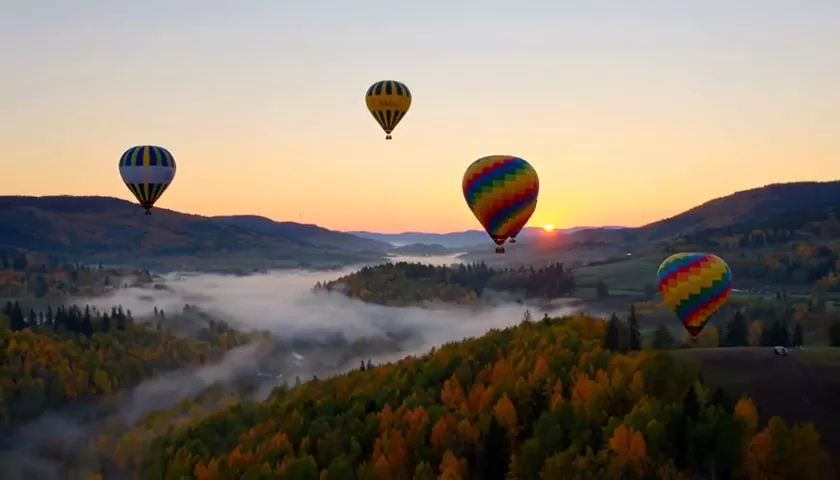
GPT Image 2 Review: OpenAI’s Flagship Image Model Tested
A practical look at GPT Image 2 by OpenAI: how it follows long prompts, renders text and infographics, edits photos with references — plus pricing, prompts and comparisons.
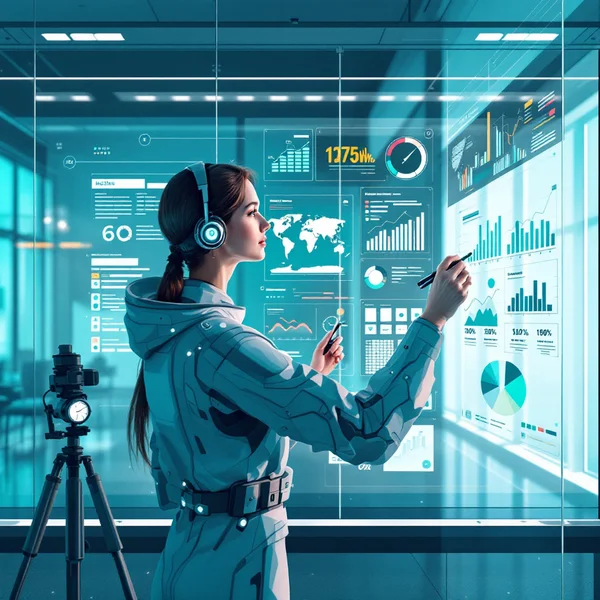
GPT Image 2 is OpenAI’s flagship image generation model, and it shines exactly where many other models fall apart: long, multi-part prompts, clean text inside the image, and labeled diagrams. In this GPT Image 2 review we cover what the model can do, how much one image costs, how to use GPT Image 2 online in WebTerra AI, and how to write prompts that get you what you actually had in mind.
OpenAI is the company behind ChatGPT, and its take on images differs noticeably from purely "artistic" generators. The model's first priority is following the instruction: placing objects where you described them, spelling the words you asked for, keeping a diagram logically consistent. That's why people often pick GPT Image 2 not for a flashy signature style but for predictability.
It's a strong fit for marketers and social media managers who need creatives with text, designers working on posters and mockups, teachers and course creators who want clear diagrams, and marketplace sellers who need infographics and product shots. Thanks to its editing mode, it also works for modifying photos you already have.
What GPT Image 2 can do
The model has two modes: generating from text and editing an uploaded image. Its key strengths:
- Understanding complex prompts. Long descriptions with multiple objects, their positions, colors, mood and details are the model's home turf. It tries to honor every point, not just the overall idea.
- Text in images. Lettering on posters, logos, packaging and signs comes out legible and neat.
- Diagrams and infographics. Labeled charts, step-by-step visuals and comparison cards — content generative models usually find hard.
- Photo editing. Upload your own image and ask for changes: add an element, swap the background, change the style.
- Up to 5 references. In editing mode the model accepts up to five images — for example a product shot, a logo and a style reference to combine in one frame.
- High quality by default. In WebTerra AI the model runs at quality "high" with one image per generation.
It's an all-rounder: portraits, landscapes, food, interiors and fashion are all within reach. But you'll feel the real difference on demanding tasks where the description has to be followed precisely.
GPT Image 2 specs
| Parameter | Value |
|---|---|
| Developer | OpenAI |
| Type | Image generation and editing |
| Input modes | Text → image; image → image |
| Reference images | up to 5 |
| Default settings | quality high, 1 image |
| Price per image (1024×1024, Starter) | 16 credits, about $0.21 |
How to use GPT Image 2 in WebTerra AI
- Sign up for WebTerra AI — you'll get 60 free credits.
- Go to the image generator in your dashboard and choose GPT Image 2.
- To generate from scratch, write a prompt. To edit, upload one to five images and describe what to do with them.
- Optionally pick a preset: cinematic portrait, product shot, poster with text, diagram or infographic, text logo and more.
- Check the credit cost and run the generation.
- Review the result. If something's off, refine the prompt rather than rewriting it — the model responds well to targeted changes.
- Download the finished image.
Other image models are gathered on the AI image generation page, which is useful if you want to compare results on the same prompt.
GPT Image 2 pricing
WebTerra AI runs on credits, and each generation gets cheaper on higher plans. Prices are for one image at default settings (1024×1024).
| Plan | Credits per image | Price in USD |
|---|---|---|
| Starter | 16 | about $0.21 |
| Pro | 15 | about $0.18 |
| Ultra | 14 | about $0.16 |
The 60 welcome credits cover three GPT Image 2 generations — enough to test the model on a real task such as a text-heavy poster or a diagram. See all plans on the pricing page.
GPT Image 2 prompt examples
Put any text that should appear in the image inside quotes. Here are ready-made examples based on the presets.
Poster with text
A minimalist concert poster, deep blue background, a single glowing saxophone in the center, large bold title "JAZZ NIGHT" at the top, smaller text "Friday, 8 PM" at the bottom, clean modern typography
A poster with a headline and a smaller line — shows how the model handles several levels of text.
Diagram or infographic
A clean infographic showing the water cycle: evaporation, condensation, precipitation and collection, each step labeled with an arrow, flat illustration style, white background, easy to read
A clear labeled diagram for a lesson, a presentation or a blog post.
Text logo
A logo for a coffee shop called "Morning Bean", a stylized coffee cup with a rising sun, warm brown and orange palette, clean vector look, the name written in a friendly rounded font
A logo with a readable name — a good starting point for a designer to refine.
Product shot
Product photo of a glass bottle of cold-pressed orange juice on a marble surface, fresh oranges and mint leaves around, soft morning light, shallow depth of field, clean commercial look
A tidy product image for a marketplace listing or website.
Social media creative
Bold social media post image, a pair of bright yellow sneakers floating against a pink gradient background, text "SUMMER DROP" in big white letters, playful and energetic
An eye-catching image for a post or story with a short caption.
Editing with references
Place the product from the first image on the kitchen counter from the second image, keep the label exactly as it is, add soft natural window light
Combining several uploaded images into one scene — a typical editing-mode task.
Tips for prompting GPT Image 2
Structure long descriptions
The model loves detail, but build it logically: main subject first, then setting, then style, lighting and composition, and finally text and small details. That way each part of the prompt reads clearly.
Keep text short and quoted
Put lettering in quotes and say where it goes: "at the top", "on the label", "in the bottom right corner". Short phrases reproduce more reliably than long paragraphs.
Be explicit about layout
"On the left", "in the foreground", "behind the table" — the model pays close attention to spatial cues. This matters most for diagrams and scenes with several characters.
In edit mode, say what to keep
When you upload a photo, specify not just what to change but what must stay: "keep the face and the outfit unchanged". With multiple references, refer to them by order: "the first image", "the second image".
Define the style in one or two precise words
"Flat illustration", "editorial photography", "3D render", "watercolor" — one precise label beats a list of ten conflicting styles.
Proofread small text
Even a model strong at typography can slip on tiny lettering and long sentences. Big headlines are reliable; for fine print, leave space and add it in an editor.
Text-to-image or editing: which mode to use
Text-to-image is the right choice when all you have is an idea: a poster, an illustration, a diagram, a packaging concept. The model builds the composition from your description. Editing is for when you have real material that must be preserved: a product photo with a specific label, a company logo, a shot of an actual room. Upload those as references and describe only the changes. This way you get images tied to your brand rather than generic variations on a theme.
Use cases for GPT Image 2
- Social media and advertising. Creatives with text, banners, covers for posts and stories.
- Marketplaces. Product shots and infographics for listings: benefits, ingredients, dimensions.
- Education. Diagrams, charts and illustrations for lessons and courses.
- Design and branding. Draft logos, posters and packaging to test ideas quickly.
- Blog content. Article illustrations that actually match the content.
- Editing. Changes to existing photos, placing a product in a new setting.
GPT Image 2 compared with other models
| Model | Strength | Choose it when |
|---|---|---|
| GPT Image 2 | Complex prompts, text, diagrams, editing | Precise instruction-following matters |
| FLUX.2 Pro | Photorealism, portraits | You want the most photographic look for people |
| Nano Banana 2 | 4K, text in images | You need high resolution |
| Ideogram V3 | Posters and flyers | You want an alternative for typographic layouts |
| Recraft V3 | Vector graphics | You need icons or flat vector illustration |
An honest take: GPT Image 2 isn't the cheapest model in the catalog, and for simple requests like "a nice landscape" you don't have to pay extra. It earns its price when the prompt has many conditions, includes text or a diagram, or when you're editing a photo with several references. For photoreal portraits try FLUX.2 Pro, for 4K output Nano Banana 2, and for a vector look Recraft V3.
Limitations
- Pricier than budget models. 14–16 credits per image; for bulk generation of simple pictures there are cheaper options.
- One image per run. By default the model produces a single image, so variations take separate runs.
- Up to 5 references. Editing accepts no more than five uploaded images.
- Fine print. Large lettering is neat, but long paragraphs in small type should be checked.
- Not always right on the first try. Like any generative model, it sometimes interprets a prompt its own way — refining the prompt helps.
FAQ
What makes GPT Image 2 different from other generators?
Its core strength is following long, complex instructions precisely, plus neat text and diagrams. It's built for predictability, not just a striking style.
Can I edit my own photos?
Yes. Upload up to five images and describe what to change or how to combine them.
How much does one image cost?
14–16 credits depending on your plan, roughly $0.16–$0.21 for a 1024×1024 image.
Is it good for logos?
For drafts and concepts, yes — especially when the logo includes a name. For print-ready vector files, consider the Recraft models.
How should I handle text that must be exact?
Keep it short, put it in quotes, say where it goes, and always proofread the result before publishing.
How many images can I make for free?
The 60 welcome credits cover three GPT Image 2 generations.
GPT Image 2 is the model for when an image has to match the description down to the details: correct text, a logical diagram, objects exactly where you put them. Open the WebTerra AI image generator and test it on your toughest prompt.
Try AI models yourself
Models for video, images and audio in one place — 60 credits free when you sign up
Start for free